
Documentation Index
Fetch the complete documentation index at: https://ngquct-feat-1048-apple-intelligence-transport.mintlify.app/llms.txt
Use this file to discover all available pages before exploring further.
Data Grid
Query results and table contents render in a spreadsheet-style grid. Edit cells inline, sort columns, copy in multiple formats, and paginate through large result sets.

Viewing Data
The header shows row count, execution time, and affected rows for UPDATE/DELETE queries.View Modes
Toggle between Data, Structure, and JSON in the status bar. Query tabs show Data and JSON only. JSON mode renders all rows as a JSON array. Toggle between Text and Tree views in the toolbar. To export only specific rows, select them in Data mode first, then switch to JSON. The Copy JSON button writes to the clipboard. View mode is remembered per tab.Foreign Key Navigation
Foreign key cells show an arrow on the right edge. Click it to open the referenced table, filtered to the matching row. A plain click uses the current tab;Cmd-click opens a new tab.
Right-click the cell for the same options plus Preview Referenced Row, which shows the row in a popover.
Column Features
Resizing Columns
- Drag column borders to resize
- Double-click a border to auto-fit column width
- Column widths are remembered per table
Sorting Data
Click a column header to sort:- First click: Sort ascending (A-Z, 0-9)
- Second click: Sort descending (Z-A, 9-0)
- Third click: Remove sort
ORDER BY). To always sort by primary key or first column on open, set Settings > Data Grid > Default row sort. Options are No sorting (default), Primary key, and First column. Tables without a primary key fall back to engine order even when Primary key is selected. Click a column header at any time to replace the default sort.
If the resolved sort column is not orderable on the server (for example a
BLOB, JSON, or spatial column with First column selected), the query fails. Switch the setting back to No sorting, or click a different column header.ORDER BY appended; if your query already has an ORDER BY, it is replaced.


Hiding Columns
Toggle columns on or off from the columns button in the status bar, or a column header’s right-click menu. Hidden columns are remembered per table. A hidden column is also left out of the query, so it isn’t fetched. If a table is slow to open because one column holds a lot of data, hide that column and the table loads faster. Showing it again re-runs the query to load it. The primary key is always fetched, so editing and saving keep working even if you hide it.Data Editing
Inline Editing
To edit a cell:- Double-click the cell
- Enter the new value
- Press
Enterto confirm orEscapeto cancel


Date/Time Picker
Date, datetime, timestamp, and time columns have a date picker. Double-click the cell to edit the value as text, or click the chevron button to open the picker, which shows a calendar for the date and hour, minute, and second fields for the time.DATE shows the calendar only; TIME shows the time fields only; DATETIME and TIMESTAMP show both. The picker keeps the value’s existing format, fractional seconds, and timezone offset. An empty or unparseable cell starts at the current date and time. To set the current timestamp or NULL, right-click the cell and use Set Value.


Foreign Key Lookup
Foreign key columns open a searchable dropdown with values from the referenced table (e.g.,1 - John Doe). Type to filter, double-click or press Enter to commit. Fetches up to 1,000 values; use the search field to narrow larger sets.


Boolean Cell Editor
BOOLEAN, BIT, and TINYINT(1) cells open a checkbox popover. Click to toggle,Enter to commit, Escape to cancel. Nullable columns support a third indeterminate state (NULL).
| Database | Column Types | Values |
|---|---|---|
| MySQL/MariaDB | TINYINT(1), BIT(1) | 0 / 1 |
| PostgreSQL | BOOLEAN | TRUE / FALSE |
| SQLite | INTEGER | 0 / 1 |


ENUM Column Editor
ENUM cells open a searchable dropdown. Click a value to select and commit. Nullable columns show a NULL option at the top.| Database | ENUM Source |
|---|---|
| MySQL/MariaDB | Native ENUM type |
| PostgreSQL | User-defined enum types (pg_enum) |
| SQLite | CHECK(column IN (...)) constraints |


SET Column Editor
SET cells (MySQL/MariaDB) open a checkbox popover. Check/uncheck values, then pressEnter to commit or Escape to cancel.


JSON Viewer
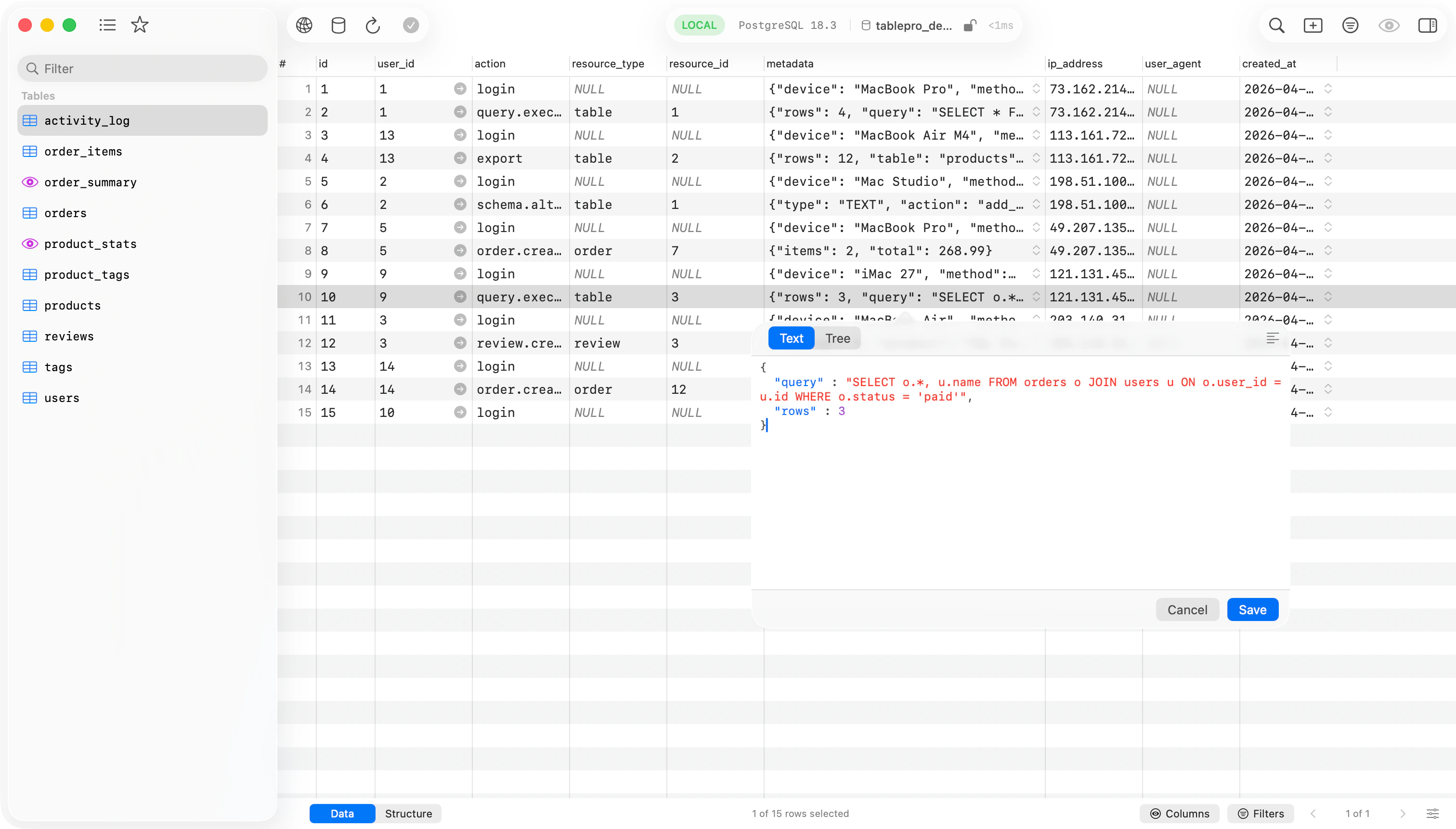
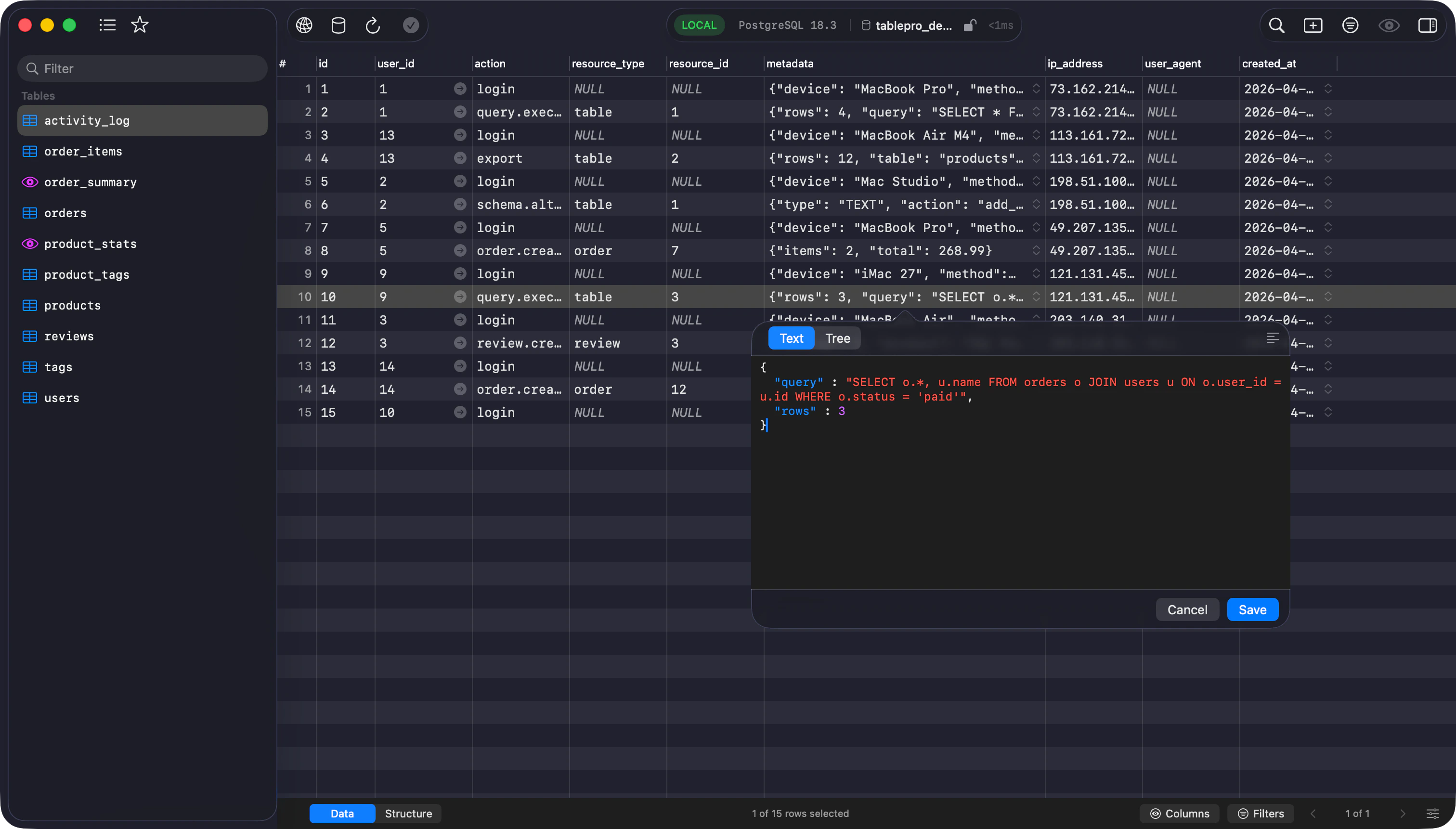
Double-click a JSON cell to open the viewer. Switch between Text and Tree modes with the toggle at the top. Text mode shows syntax-highlighted JSON with brace matching. Tree mode shows a collapsible outline you can search, expand/collapse all, and right-click to copy values or key paths like$.users[0].email.
JSON is minified on save. Invalid JSON falls back to text mode.
Hex Editor (BLOB/Binary)
BLOB, BINARY, and VARBINARY cells open a hex editor popover. Edit as space-separated hex bytes (e.g.,48 65 6C 6C 6F). Invalid input is highlighted in red as you type. The Cell Inspector sidebar also offers hex editing.
BLOBs larger than 10 KB are read-only. Use an external hex editor for large binary data.
Multi-Row Editing
Select multiple rows withCmd+click (non-contiguous) or Shift+click (range) on row numbers. Press Delete to remove selected rows.


Fill Column
Right-click a column header and choose Fill Column to set one value across all loaded rows at once. Enter the value in the dialog, or check Set to NULL for nullable columns. The dialog shows how many rows it will set. Fill stages the change like any other edit, so review it with Preview SQL and Commit (Cmd+S) to apply, or Discard to drop it. Cmd+Z reverses the whole fill in one step. It only affects the rows currently loaded in the grid, not rows on other pages, and is not available on primary key columns.
Saving Changes
Changes are queued, not applied immediately. Manage pending changes with:- Preview SQL: Click the Preview SQL button (eye icon) or press
Cmd+Shift+Pto review pending SQL statements before committing - Commit: Click the Commit button (or press
Cmd+S) to apply all pending changes - Discard: Click the Discard button to revert all pending changes
- Undo/Redo: Press
Cmd+Zto undo orCmd+Shift+Zto redo individual edits before committing
Adding and Deleting Rows
Click the + button to add a new row, or select row(s) and pressDelete to remove them. Changes are queued until you click Commit.
Change Indicators
Pending changes get visual feedback:- Modified cells are highlighted with a distinct background color
- New rows display an insertion indicator
- Deleted rows display a deletion indicator
- The toolbar shows the count of pending changes
Cell Inspector
The Cell Inspector is a right sidebar panel showing detailed information about the selected row or current table. Toggle withCmd+Shift+B or via View > Toggle Cell Inspector.


Row Details Mode
When a row is selected, the inspector shows all column values with full content:- Search columns by name
- TEXT/VARCHAR columns get a multi-line editor
- JSON/JSONB columns show a compact preview with an expand button for the full JSON viewer
- Edits here are queued like inline edits
Table Info Mode
When no row is selected, the inspector shows table metadata: name, row count, storage size, creation date, engine, charset, and collation.Read-Only Safe Mode connections and complex query results are not editable. See Safe Mode.
Keyboard Navigation
Use arrow keys to move between cells. PressEnter to edit, Escape to cancel. Tab / Shift+Tab move to the next/previous cell. Cmd+Home / Cmd+End jump to first/last row.
Selecting & Copying
Click a cell to select it. Drag or Shift+click to select a range. Click row numbers for entire rows; Cmd+click for non-contiguous rows.Cmd+C copies the focused cell value when a single row is selected and a cell has focus; otherwise it copies the selected row(s) as TSV. Cmd+Shift+C always copies the selected row(s) as TSV. Cmd+Option+J copies as JSON.
Right-click a row and choose Copy as for additional formats:
| Format | Description |
|---|---|
| Cell Value | The clicked cell’s content |
| With Headers | TSV with the column names as the first line |
| JSON | A JSON array of row objects |
| CSV | RFC 4180 CSV; empty fields for NULL |
| CSV with Headers | Same as CSV with the header row prepended |
| Markdown | GitHub-flavored Markdown table |
| IN Clause | ('a', 'b', 'c') from the clicked column across selected rows, ready for WHERE col IN (...) |
| INSERT Statement(s) | SQL INSERT for each row (SQL databases only) |
| UPDATE Statement(s) | SQL UPDATE for each row by primary key (SQL databases only) |


Pagination
Table tabs paginate large result sets. The status bar shows a rows-per-page menu and First / Previous / Next / Last buttons, with a page indicator between them.- Rows per page: pick a preset (5, 10, 20, 100, 500, 1,000), enter a custom size, or choose All rows to load the whole table on one page. Loading all rows asks for confirmation first, since large tables use a lot of memory.
- Page navigation: jump to the first or last page, step one page at a time, or click the page indicator to go to a specific page.
- The bar also appears for filtered tables whose total row count is unknown. There the Next button stays available while a full page keeps loading, and the indicator shows the page number without a total.


Smart Value Detection
Auto-renders UUIDs and Unix timestamps in the grid when column type and name match:| Column Type | Name Contains | Display |
|---|---|---|
BINARY(16) | uuid, guid, _id | 550e8400-e29b-41d4-a716-446655440000 |
CHAR(32), VARCHAR(36) | uuid, guid | UUID with hyphens |
INT, BIGINT | _at, _time, _timestamp, created, updated | 2025-01-15 10:30:00 |
NULL Values and Display
NULL values show as styled “NULL” text (customizable in Settings > Editor). Configure date format, row height, and alternate row colors in the same settings panel.Result Truncation
Query tabs cap results at 10,000 rows by default to keep the UI responsive on large queries. When the cap kicks in, the status bar shows a truncation marker and a Fetch All button: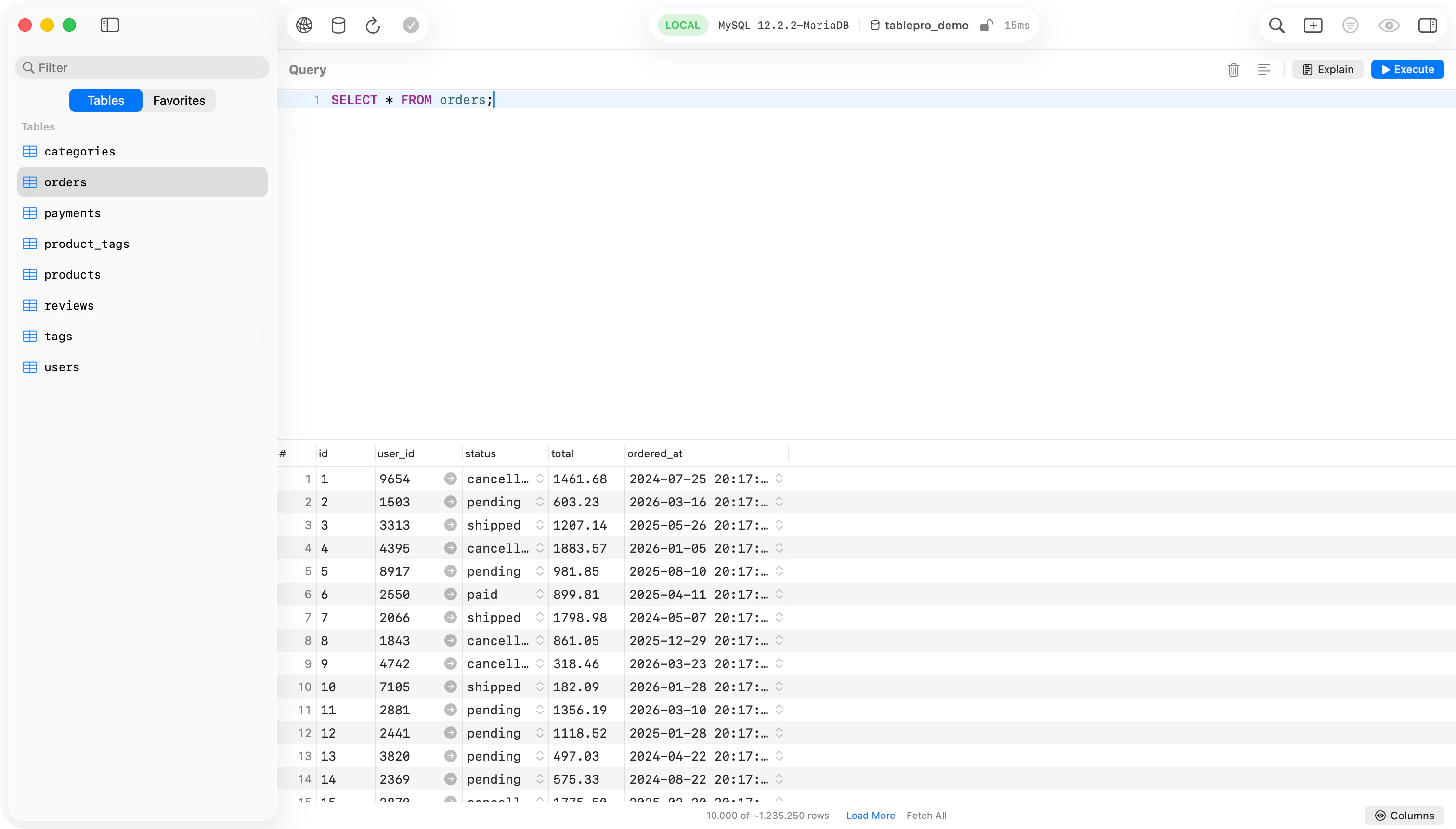
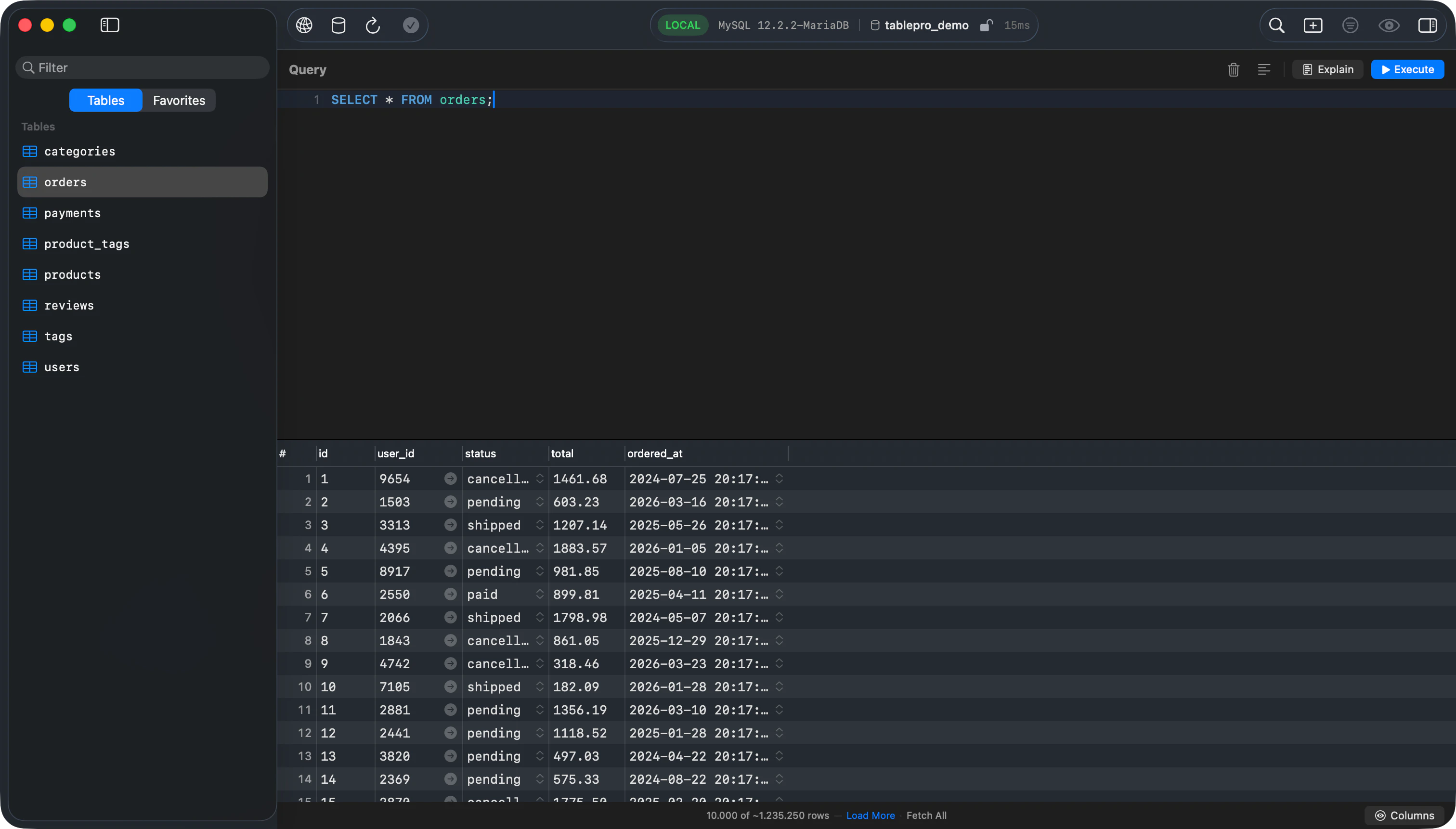
- Showing N rows (truncated) means the query returned more than the cap and the grid is showing the first N rows
- Fetch All re-runs the query without a cap. A confirmation appears first because large result sets use significant memory.
LIMIT and OFFSET are passed to the database unchanged. SELECT ... LIMIT 10 returns 10 rows whether the cap is set or not. The cap only kicks in when the database returns more rows than your cap allows, which happens on queries with no LIMIT or with a LIMIT larger than the cap.
Configure the cap in Settings > Editor:
- Truncate query results: turns the cap on or off
- Row cap: 100 to 500,000, or 0 for unlimited
Cancelling
PressCmd+. or click the stop button in the toolbar to cancel a running query or a Fetch All operation.
MongoDB Collections
Schema and Display
MongoDB has no fixed schema. TablePro infers columns by sampling up to 500 documents. Missing fields show as NULL. The_id column is read-only; delete and re-insert to change it.
BSON types display as: ObjectId("..."), ISO 8601 dates, BinData(subtype, "base64..."), decimal strings, DBRef("collection", id).
MQL Statement Preview
Changes preview as MongoDB shell commands:- Inserts:
db.collection.insertMany([...]) - Updates:
db.collection.updateOne({filter}, {$set: {...}}) - Deletes:
db.collection.deleteMany({_id: {$in: [...]}})