
Documentation Index
Fetch the complete documentation index at: https://ngquct-feat-1048-apple-intelligence-transport.mintlify.app/llms.txt
Use this file to discover all available pages before exploring further.
MCP Server
TablePro includes a built-in Model Context Protocol (MCP) server that lets AI clients query your databases through TablePro’s saved connections. The MCP server is one of three pillars of the External API, alongside the URL scheme and the pairing flow. This page covers the in-app Settings > Integrations UI. For protocol details, see the External API section.Tool catalog
JSON-RPC tools, input and output schemas.
Resources
Read-only resources for connection metadata, schema, and history.
Tokens
Scopes, allowlists, expiry, revocation.
Pairing
One-click flow to issue a token to an extension.
MCP Clients
Stdio MCP setup for Claude Desktop, Claude Code, Cursor, Cline, Continue, Zed, Windsurf, Goose, and custom clients.
Raycast
Reference extension that uses URL scheme, MCP, and pairing.
Enabling the server
The MCP server lazy-starts on first use. Pairing an extension or hittingtablepro://integrations/start-mcp from the bundled tablepro-mcp CLI starts the server on demand. You do not have to flip a toggle in Settings beforehand.
When the server starts, it picks a free port in the 51000-52000 range and writes a handshake file at ~/Library/Application Support/TablePro/mcp-handshake.json. The tablepro-mcp CLI and the Raycast extension read this file to find the port; you do not need to configure it manually.
To start it manually or keep it running between launches, open Settings > Integrations and toggle Enable MCP Server.
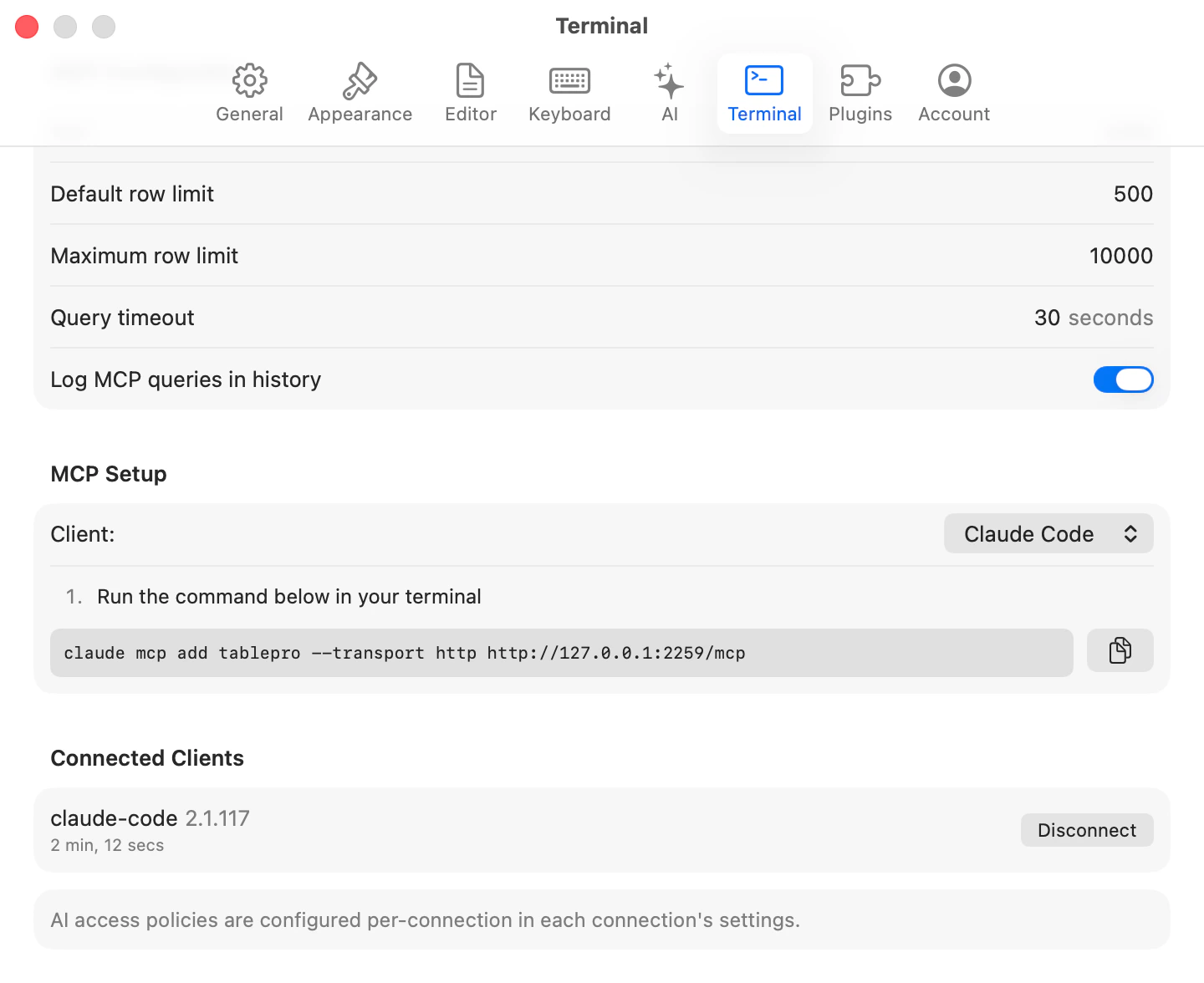
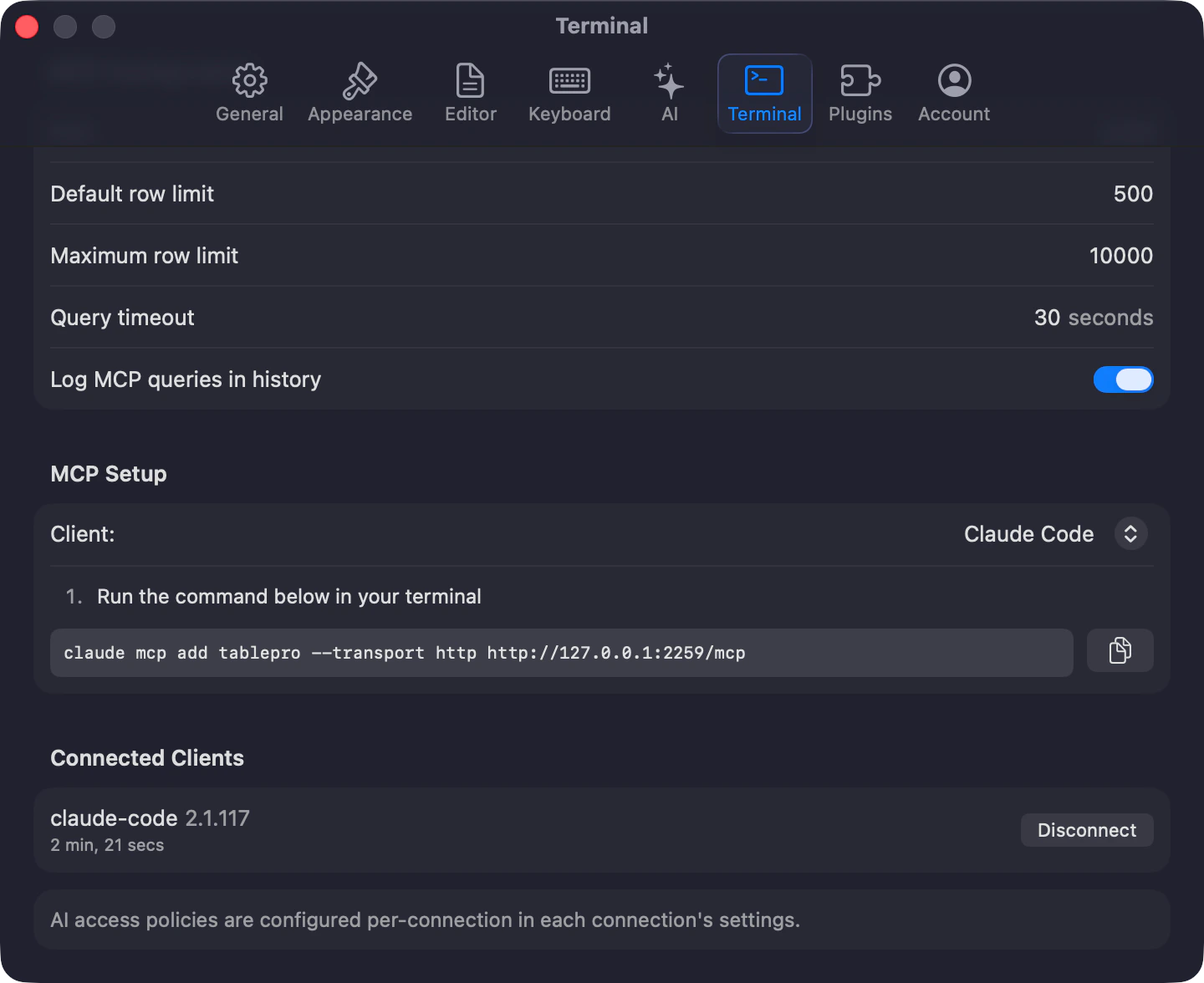
- Default row limit (default 500)
- Maximum row limit (default 10,000)
- Query timeout (default 30 seconds)
- Log MCP queries in history (show MCP queries in Query History)
MCP setup snippets
Settings > Integrations > MCP Setup writes the config for popular clients in one click:- Setup for Claude Code uses the stdio bridge, no token needed.
- Setup for Claude Desktop writes to
~/Library/Application Support/Claude/claude_desktop_config.json. - Setup for Cursor writes to
~/.cursor/mcp.json.
Authentication
Tokens are managed under Settings > Integrations > Authentication. The pairing flow, scopes, allowlists, expiry, and revocation are documented in Tokens. When Require authentication is off and the server is bound to localhost only, requests from your own machine are accepted without a bearer token. Remote connections always require a token. Turning Require authentication on for the first time creates a default token, writes it to disk, and shows it once so you can copy it; existing tokens are left untouched. The activity log under Settings > Integrations > Activity Log shows every authentication, tool call, and resource read with the token id, category, action, connection, and outcome. Entries are kept for 90 days.Remote access
The MCP server is localhost-only by default. Toggle Remote access under Settings > Integrations > Network to accept connections from other machines. Enabling remote access automatically requires authentication and TLS.Connection options
Tailscale (recommended): install on both machines and connect via the Tailscale IP.http://127.0.0.1:<port>/mcp through the tunnel.
Direct LAN: connect using the Mac’s IP. The client must trust the TLS certificate (see below).
TLS
When remote access is enabled, TablePro generates a self-signed certificate valid for 1 year.- The SHA-256 fingerprint shows in Settings > Integrations > Network.
- Copy Certificate (PEM) exports the certificate for client trust stores.
- Regenerate creates a new certificate (invalidates existing trust).
Origin and DNS rebinding protection
The server validates theOrigin header against localhost, 127.0.0.1, and ::1. Browsers and DNS-rebinding tricks cannot reach the API even when remote access is off.
What the server cannot access
| Capability | State |
|---|---|
| Read connection passwords | no |
| Read SSH keys | no |
| Read license data | no |
| Read app settings | no |
Read local files outside ~/Library/Application Support/TablePro/ | no |
| Mutate Safe Mode rules | no |
Troubleshooting
Port conflict: the server picks a different free port from the51000-52000 range on next launch. The handshake file is rewritten.
“Server not fully initialized”: restart the MCP server from Settings. If it persists, relaunch TablePro.
App must be running: the MCP server only runs while TablePro is open. The stdio bridge fires tablepro://integrations/start-mcp to launch the app on cold start.
Connection refused: check the green status indicator in Settings > Integrations. Verify the URL and port match the handshake file.
401 Unauthorized: the token is missing, expired, or revoked. Generate a new one in Settings > Integrations > Authentication, or run the pair command in your extension.
403 Forbidden: the token’s allowlist excludes the connection, the connection’s externalAccess is blocked, or the SQL is a write against a readOnly connection.
Certificate trust error: export the PEM from Settings > Integrations > Network and add it to your client’s trust store, or use fingerprint pinning.
429 Too Many Requests: 5 failed auth attempts within 60 seconds against the same (client_address, principal) pair triggers a 5-minute lockout. A successful auth clears the bucket.
Protocol errors: MCP protocol errors come back as readable messages (for example “Invalid JSON-RPC request” instead of invalidRequest). The text in the response body and the activity log is what to act on.